 Baobhan Sith
176 lines
6.5 KiB
Markdown
176 lines
6.5 KiB
Markdown

|
||
---
|
||
|
||
<div align="center">
|
||
|
||
[][docker-url] [](https://github.com/Heavrnl/nexus-terminal/blob/main/LICENSE)
|
||
<br>
|
||
[中文](./README.md) | [English](./doc/README_EN.md)
|
||
|
||
[docker-url]: https://hub.docker.com/r/heavrnl/nexus-terminal-frontend
|
||
|
||
</div>
|
||
|
||
|
||
## 📖 概述
|
||
|
||
**星枢终端(Nexus Terminal)** 是一款现代化、功能丰富的 Web SSH / RDP 客户端,致力于提供高度可定制的远程连接体验。
|
||
|
||
## ✨ 功能特性
|
||
|
||
* 多标签页管理 SSH 与 SFTP 连接
|
||
* 支持通过 RDP 协议远程访问 Windows 桌面
|
||
* 采用 Monaco Editor,支持在线编辑文件
|
||
* 集成多重登录安全机制,包括人机验证(hCaptcha、Google reCAPTCHA)与双因素认证(2FA)
|
||
* 高度可定制的界面主题与布局风格
|
||
* 内置简易 Docker 容器管理面板,便于容器运维
|
||
* 支持 IP 白名单与黑名单,异常访问自动封禁
|
||
* 通知系统(如登录提醒、异常告警)
|
||
* 审计日志,全面记录用户行为与系统变更
|
||
* 基于 Node.js 的轻量级后端,资源占用低
|
||
* 内置心跳保活机制,确保连接稳定
|
||
* 焦点切换器:允许在页面输入组件间切换,支持自定义切换顺序和快捷键
|
||
|
||
## 📸 截图
|
||
|
||
|
||
|
||
|
||
|
||
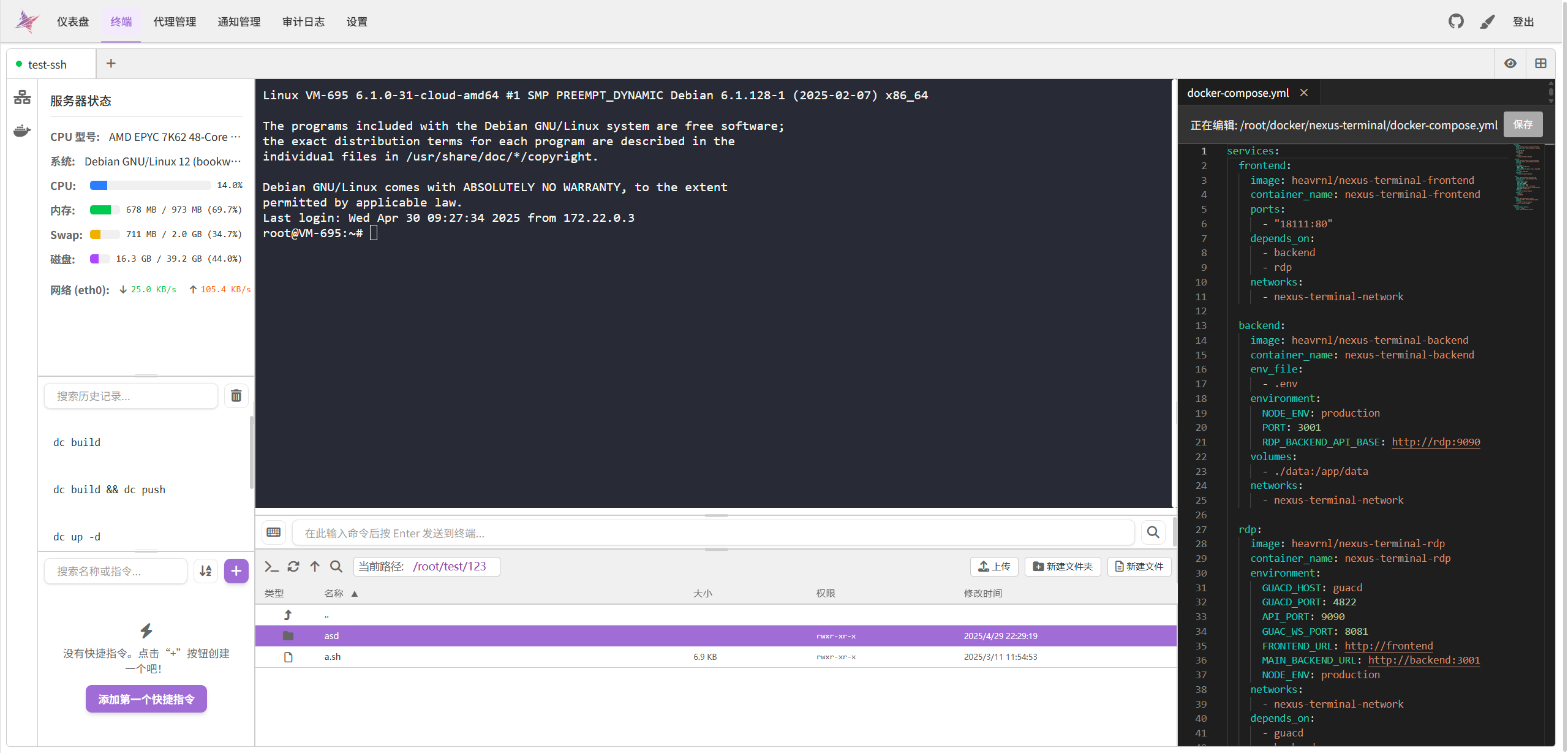
| 终端界面(Light) |
|
||
|:-------------------------------------------------------------:|
|
||
|  |
|
||
|
||
---
|
||
|
||
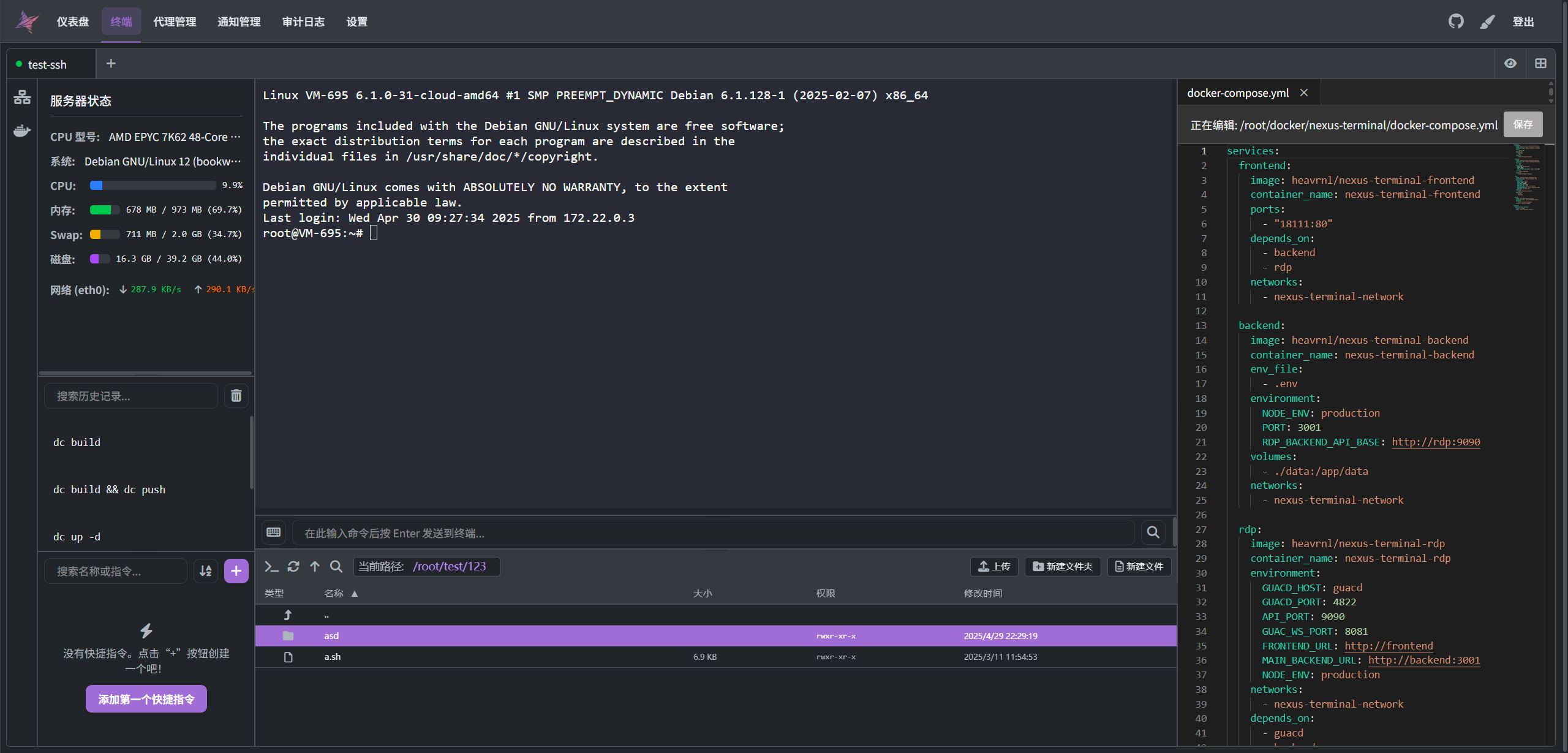
| 终端界面(Dark) |
|
||
|:-------------------------------------------------------------:|
|
||
|  |
|
||
|
||
---
|
||
|
||
|
||
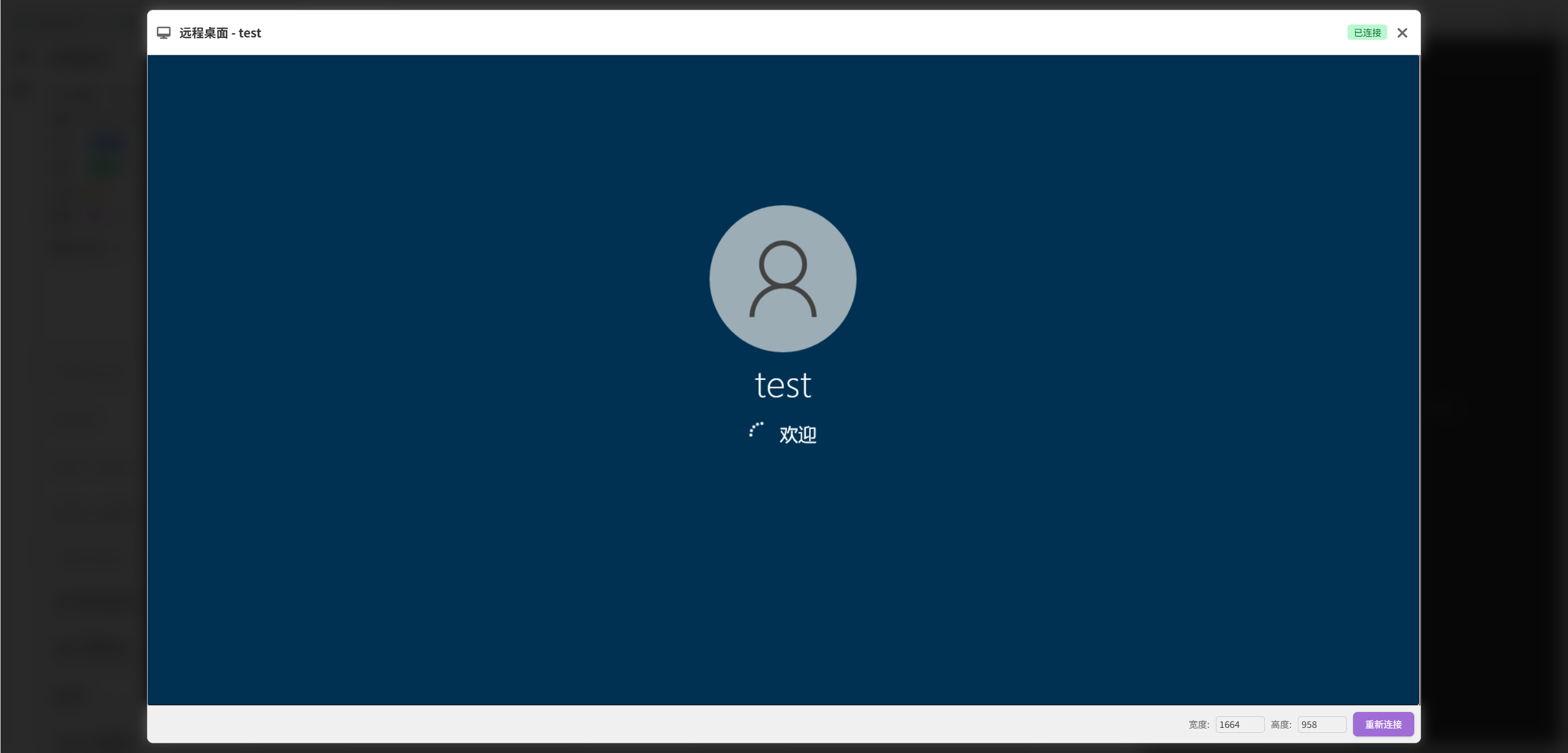
| RDP |
|
||
|:-------------------------------------------------------------:|
|
||
|  |
|
||
|
||
---
|
||
|
||
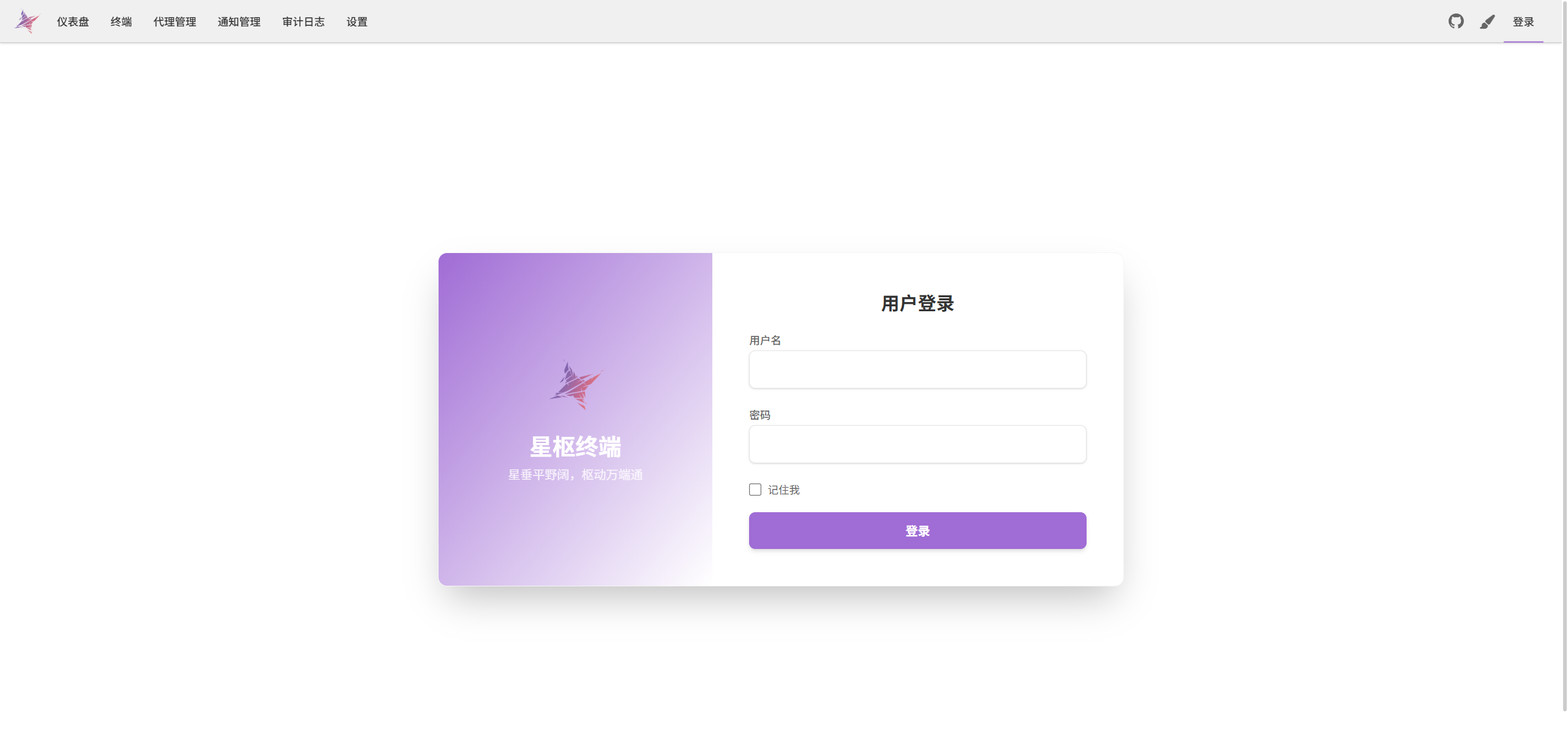
| 登录界面 |
|
||
|:-------------------------------------------------------------:|
|
||
|  |
|
||
|
||
---
|
||
|
||
| 样式设置 | 布局设置 | 设置面板 |
|
||
|:-------------------------------------------------------------:|:-------------------------------------------------------------:|:-------------------------------------------------------------:|
|
||
| 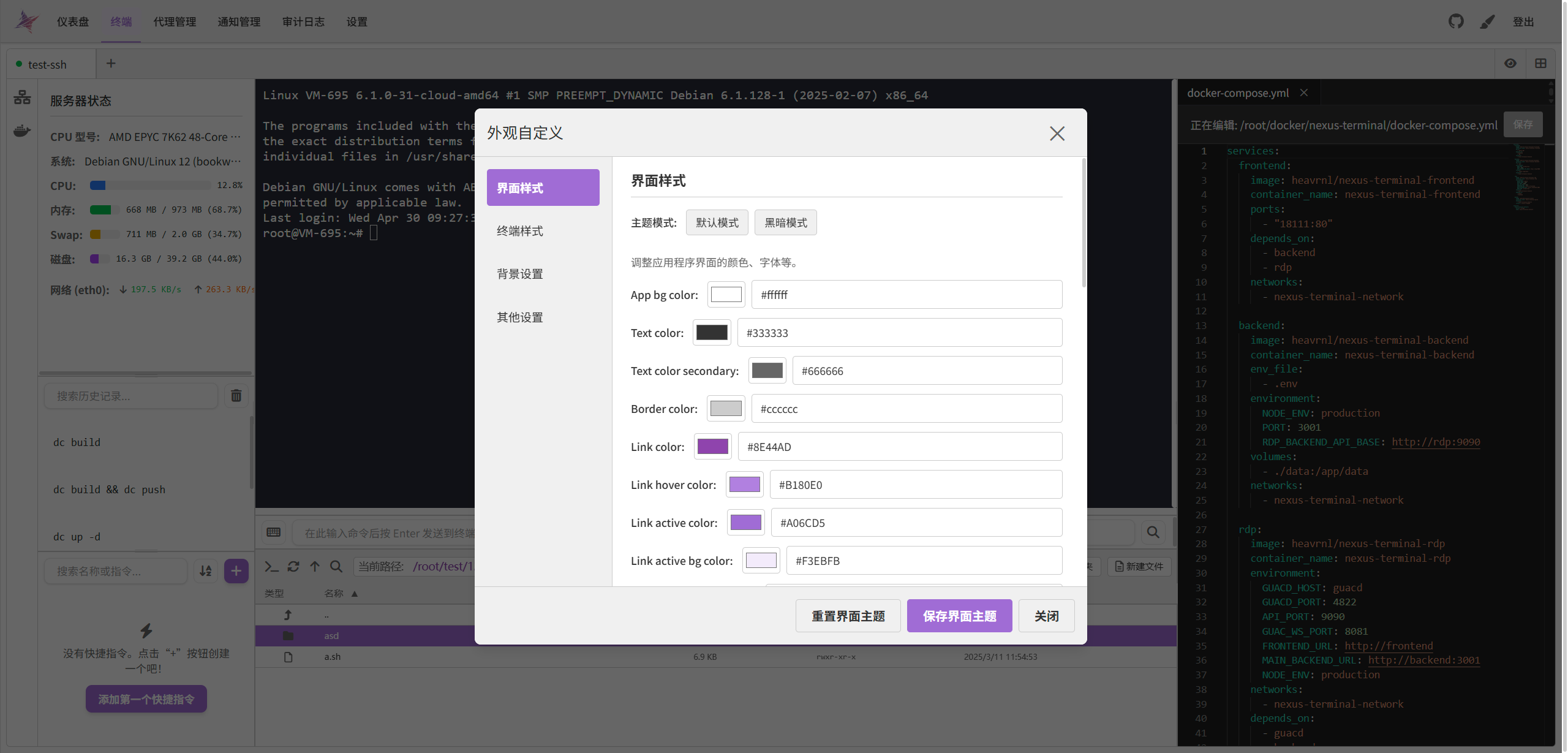 | 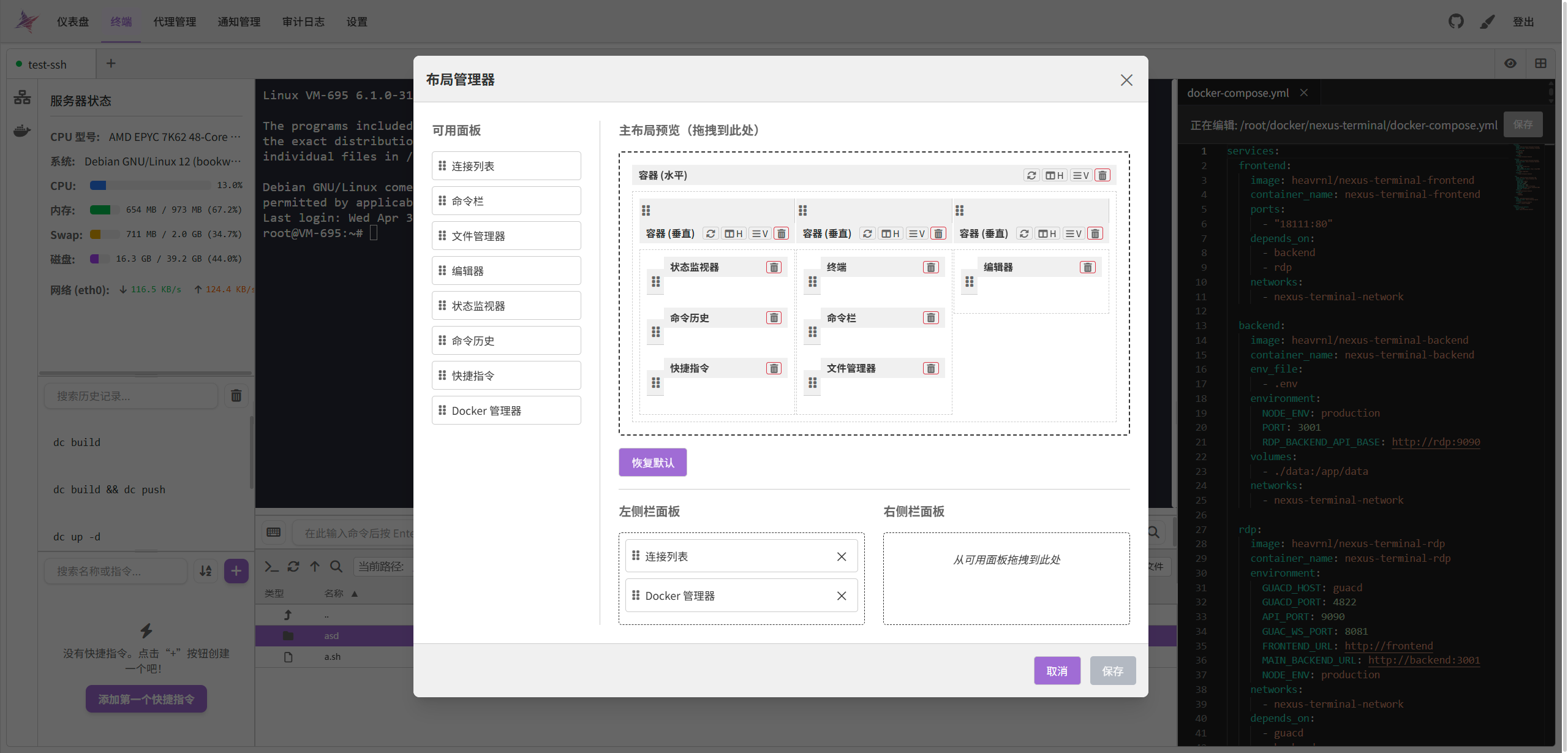 |  |
|
||
|
||
|
||
|
||
## 🚀 快速开始
|
||
|
||
### 1️⃣ 配置环境
|
||
|
||
新建文件夹
|
||
```bash
|
||
mkdir ./nexus-terminal && cd ./nexus-terminal
|
||
```
|
||
下载仓库的 [**docker-compose.yml**](https://raw.githubusercontent.com/Heavrnl/nexus-terminal/refs/heads/main/docker-compose.yml) 和 [**.env**](https://raw.githubusercontent.com/Heavrnl/nexus-terminal/refs/heads/main/.env) 到目录下
|
||
|
||
```bash
|
||
wget https://raw.githubusercontent.com/Heavrnl/nexus-terminal/refs/heads/main/docker-compose.yml -O docker-compose.yml && wget https://raw.githubusercontent.com/Heavrnl/nexus-terminal/refs/heads/main/.env -O .env
|
||
```
|
||
|
||
配置 nginx
|
||
```conf
|
||
location / {
|
||
proxy_http_version 1.1;
|
||
proxy_set_header Upgrade $http_upgrade;
|
||
proxy_set_header Connection "upgrade";
|
||
proxy_set_header X-Forwarded-For $proxy_add_x_forwarded_for;
|
||
proxy_set_header X-Forwarded-Proto $scheme;
|
||
proxy_set_header Host $http_host;
|
||
proxy_set_header X-Real-IP $remote_addr;
|
||
proxy_set_header Range $http_range;
|
||
proxy_set_header If-Range $http_if_range;
|
||
proxy_redirect off;
|
||
proxy_pass http://127.0.0.1:18111;
|
||
}
|
||
```
|
||
|
||
|
||
|
||
为 docker 配置IPv6, 在`/etc/docker/daemon.json`加入以下内容
|
||
```json
|
||
{
|
||
"ipv6": true,
|
||
"fixed-cidr-v6": "fd00::/80",
|
||
"ip6tables": true,
|
||
"experimental": true
|
||
}
|
||
```
|
||
重启docker服务
|
||
```
|
||
sudo systemctl restart docker
|
||
```
|
||
|
||
### 2️⃣ 启动服务
|
||
|
||
```bash
|
||
docker-compose up -d
|
||
```
|
||
|
||
### 3️⃣ 更新
|
||
注意:docker-compose 运行不需要拉取仓库源码,除非你打算自己build,否则只需要在项目目录执行以下命令即可更新。
|
||
```bash
|
||
docker-compose down
|
||
```
|
||
```bash
|
||
docker-compose pull
|
||
```
|
||
```bash
|
||
docker-compose up -d
|
||
```
|
||
## 📚 使用指南
|
||
|
||
以下是一些隐式的实用功能
|
||
### 命令输入框组件
|
||
|
||
1. **标签页切换**:当命令输入框获得焦点时,使用 `Alt + ↑/↓` 切换 SSH 会话标签页,使用 `Alt + ←/→` 切换文本编辑器标签页。
|
||
2. **命令同步**(需在设置中开启):开启后,在命令输入框中输入的文字将实时同步到选定的目标输入源。使用 `↑/↓` 键选择菜单命令项,然后按下 `Alt + Enter` 发送选中的指令。
|
||
|
||
### 文件管理器组件
|
||
|
||
1. **文件快速选择**:在文件搜索框获得焦点时,可以使用 `↑/↓` 键快速选择文件。
|
||
2. **拖拽上传**:支持从浏览器外部拖拽文件或文件夹进行上传。**注意:** 上传大量文件或深层文件夹时,建议先进行打包压缩,以避免浏览器卡死。
|
||
3. **内部拖拽**:可以直接在文件管理器内部拖动文件或文件夹以进行移动。
|
||
4. **多选操作**:按住 `Ctrl` 或 `Shift` 键可以选择多个文件或文件夹。
|
||
5. **右键菜单**:提供复制、粘贴、剪切、删除、重命名、修改权限等常用文件操作。
|
||
|
||
### 历史命令组件
|
||
|
||
1. **查看完整命令**:当历史命令过长被截断时,将鼠标悬停在命令上即可查看完整的指令内容。
|
||
|
||
### 通用操作
|
||
|
||
1. **缩放**:在终端、文件管理器和文本编辑器组件中,可以使用 `Ctrl + 鼠标滚轮` 进行缩放。
|
||
|
||
## ⚠️ 注意事项
|
||
|
||
1. **双文件管理器**:可以在布局中添加两个文件管理器组件(实验性功能,可能存在不稳定情况)。
|
||
2. **多文本编辑器**:在同一布局中添加多个文本编辑器的功能尚未实现。
|
||
|
||
|
||
## ☕ 捐赠
|
||
|
||
如果你觉得这个项目对你有帮助,欢迎通过以下方式请我喝杯咖啡:
|
||
|
||
[](https://ko-fi.com/0heavrnl)
|
||
|
||
|
||
## 📄 开源协议
|
||
|
||
本项目采用 [GPL-3.0](LICENSE) 开源协议,详细信息请参阅 [LICENSE](LICENSE) 文件。
|
||
|